
HubSpot Parent-Child Company Hierarchies: Setup + Clay Automation
How to structure a multi-location brand in HubSpot and automate it with Clay — no code. This version is corrected from a real, live build: it uses a two-table flow that avoids the duplicate-parent trap most single-table designs fall into.

Deep Singh
Principal Talent Engineer & Co-Founder, Effi Flo
How to build parent-child company hierarchies in HubSpot with Clay
To model a multi-location brand in HubSpot and automate it with Clay, use a two-table flow: one Parent Companies table that creates each unique brand once, and one Child Companies table that creates each location, looks up its parent's Record ID, and associates the two. The two-table design exists for one reason — Clay's Create object action always creates and never de-duplicates, so creating the parent on every child row produces a duplicate parent per child. This guide is the corrected, build-tested version: every step matches the live Clay UI and was validated end-to-end in a real HubSpot build.
Prepared by Effi Flo · validated in a live HubSpot build. This is the v2 two-table flow — corrected from the idealized single-table design after we actually built it.
- One parent, many children. The corporate brand is the parent; every location is a child underneath it.
- Connect people to the child, never the parent — so you always know which location someone belongs to.
- Turn off HubSpot's automatic contact-company association, or corporate emails snap everyone onto the parent record.
- Use two Clay tables. A Parent Companies table (unique parents) creates the parents once; a Child Companies table creates each child, looks up its parent, and links them.
- Why two? Clay's
Create objectdoesn't de-dupe — creating the parent on every child row makes duplicates. Create parents once, then reference them.
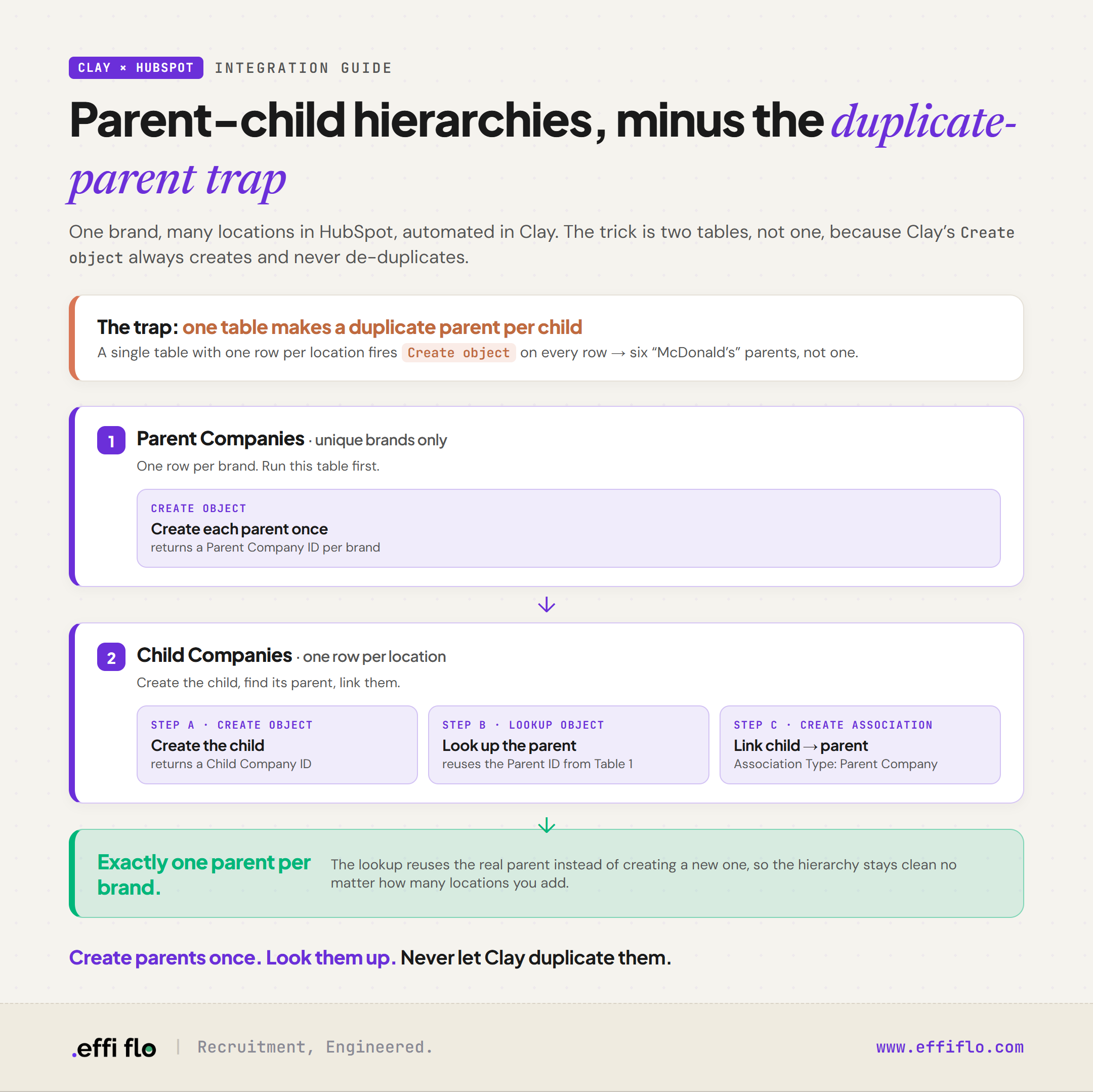 Clay to HubSpot two-table flow: create unique parents once in Table 1, then in Table 2 create each child, look up its parent, and associate them — avoiding the duplicate-parent trap of a single-table design
What is a parent-child company hierarchy in HubSpot?
A parent-child company hierarchy in HubSpot links a corporate brand — the parent company — to its individual locations — the child companies — using HubSpot's built-in Parent/Child Company association. It keeps clean, separate data for each location while still rolling everything up to the brand, which is what you want for any franchise, multi-location business, or regional brand.
Why use two Clay tables instead of one?
Use two tables because Clay's Create object action never de-duplicates. Our first version followed the tidy single-table design most guides teach: one table, one row per child, with a column that creates the parent. When we actually built it, that created a duplicate parent for every child row — because Create object always creates a new record, it never finds-or-updates an existing one.
The fix (this version): split into two tables — create the unique parents once in their own table, then in the child table look up each parent's ID and associate.
Why use a parent-child company structure in HubSpot?
Use a parent-child structure whenever one brand spans multiple locations — it keeps each location's data separate while still rolling up to the brand. A few extra steps of setup, in exchange for data that stays clean as the brand grows.
| You get | What that means |
|---|---|
| Organized data | Cleanly separate every franchise or branch. You always know which store an employee works for. |
| Accurate revenue tracking | See what each location brings in and the combined total for the whole brand. |
| Targeted marketing | Email one branch without bothering corporate or every other location. |
| Clean account assignment | Reps own specific city territories without stepping on each other. |
| Future growth | Add new stores later without making the account messy. |
What's the difference between a parent and child company in HubSpot?
Two record types, one rule people get wrong. The parent is the corporate brand; the child is a specific location. People connect to the child, never the parent.
- Parent — the corporate brand. The top-level company:
McDonald's Corporate. One per brand. It sits above every location. - Child — the local branch. A specific store or city location:
McDonald's Atlanta. Many per brand. This is where people connect.
The rule: do not connect store employees to the parent corporate brand. Always link them to their specific child location.
The setting that quietly breaks everything. HubSpot can auto-link a contact to a company based on their email domain. Leave it on, and an employee with a corporate address like name@mcdonalds.com automatically attaches to the parent record instead of their actual branch — silently undoing your structure. To switch it off: in HubSpot go to Settings (the gear icon, top right) → Data Management → Objects → Companies, then uncheck "Automatically create and associate companies with contacts." Do this before you import or sync anyone.
How does the two-table flow work, end to end?
Parents are created once in their own table. The child table then creates each location, finds its parent, and links them.
Table 1 · Parent Companies (unique) — a single Create object · Company action creates each unique parent (one row per brand) and returns each parent's HubSpot Record ID. Run this table first. Parents now exist with IDs, so the child table can reference them.
Table 2 · Child Companies (one row per location) runs three steps:
- Step A · Create object — each location becomes its own company, returning a Child Record ID.
- Step B · Lookup object — look up the parent company by name/domain, returning the Parent Record ID.
- Step C · Create association — associate the two IDs. The hierarchy appears in HubSpot.
The Lookup step is the bridge. Because the parent already exists (Table 1), the child table doesn't re-create it — it looks it up and reuses its ID. That single change is what prevents duplicate parents.
How do you link parent and child companies manually in HubSpot?
Fine for one or two brands. Here's the click path.
- Go to CRM > Companies and create all your company records (
McDonald's Corporate,McDonald's Atlanta, etc.). - Open the child company record (e.g.
McDonald's Atlanta). - In the right-hand sidebar, find the Related Companies card and click Add.
- Search for your parent company and select it.
- Click Next, choose the Parent Company label, and save.
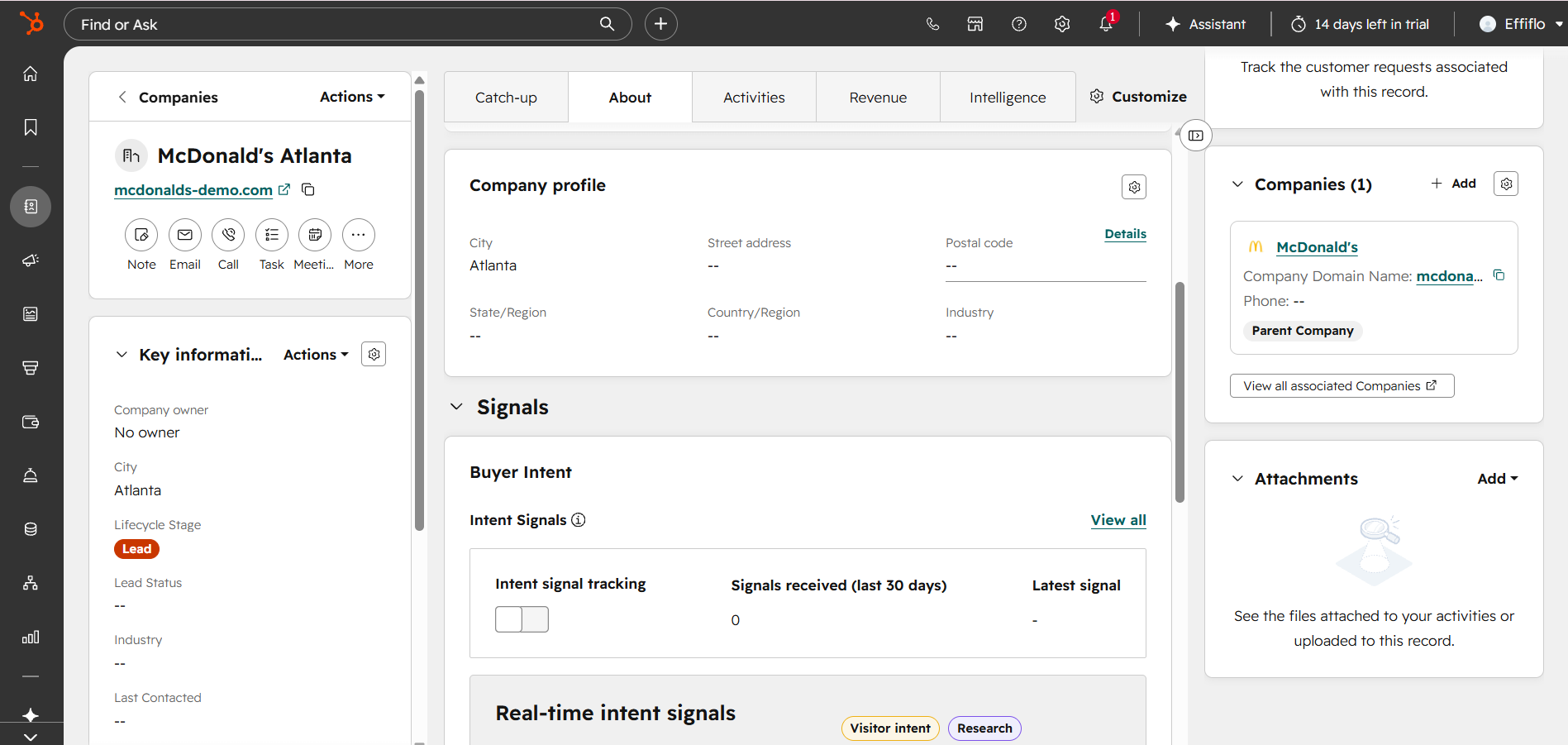 HubSpot: McDonald's Atlanta showing McDonald's as its Parent Company
What if a company has only one location?
Not every company is multi-location. A single-site business is just a standalone company — no parent or child needed.
- No action needed. Leave the parent and child fields blank.
- Direct links. All contacts connect straight to this one company record.
- Ready for growth. If it expands later, turn this single record into a parent or child without changing existing data.
What are the limitations of Clay's HubSpot integration?
Clay has a native HubSpot integration — no code, no webhooks. But two behaviours shape how you build.
1 · You can't create and link in one action. Both records must exist first so HubSpot can mint a Record ID for each. Only then can you associate them. That's why creating and linking are separate steps.
2 · Create object doesn't de-duplicate. Clay's Create object action always creates a new record — it won't find-or-update an existing one. So if you create the parent on every child row, you get one duplicate parent per child (six "McDonald's" records, not one). The two-table flow exists precisely to avoid this: create each parent once, then look it up.
The Clay build, step by step
Before you build: get your data into Clay. Each table needs your company list in it as rows before you add any action columns. The quickest way in: create a table in Clay and either import a CSV (+ Add → Import CSV) or paste rows straight from a spreadsheet. For Table 1, that's one row per unique brand with Company Name and Company Domain. For Table 2, one row per location with the parent_name, parent_domain, child_name, child_city, and child_domain columns filled in. Once the rows are in, add the action columns described below.
Skip the setup. Download the two Clay-ready starter tables, import them straight into Clay, and follow the steps below with the columns already in place: Parent Companies template (CSV) and Child Companies template (CSV).
Table 1 — Parent Companies (unique parents only)
One row per brand. Columns: Company Name, Company Domain.
- Add an action column → HubSpot → Create object (Object Type: Company).
- Map Company name →
Company Name, Company Domain Name →Company Domain. - Run → output column = the HubSpot Parent Company ID (one per brand).
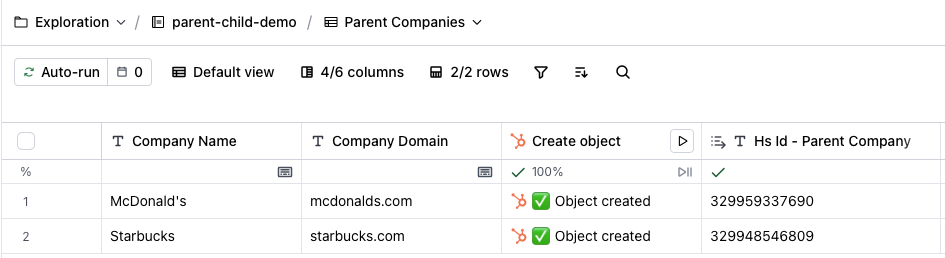 Clay Parent Companies table with McDonald's and Starbucks created
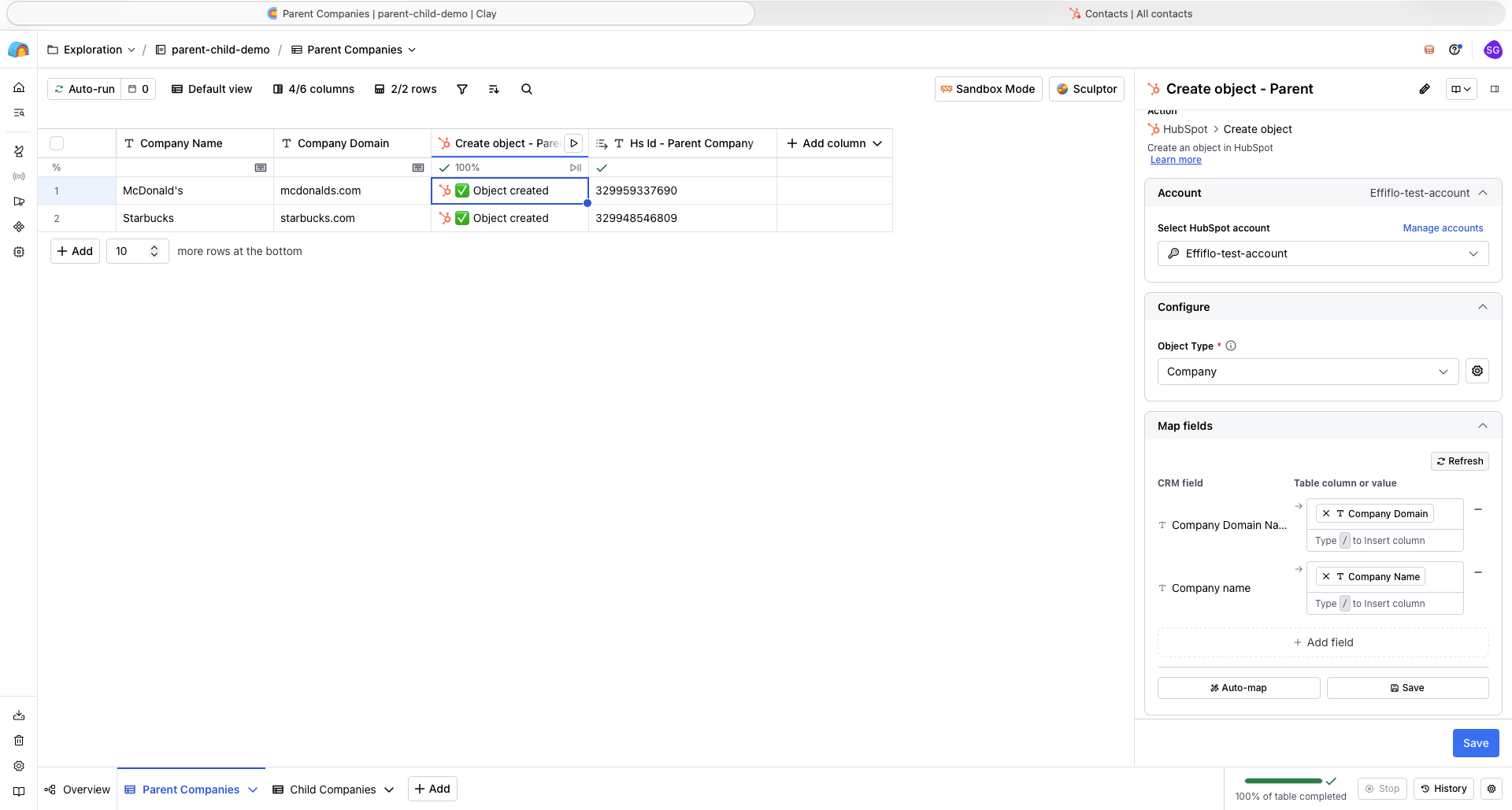 Clay Create object action config for the parent company
Table 2 — Child Companies (one row per location)
Columns: parent_name, parent_domain, child_name, child_city, child_domain.
Step A — Create the child.
- Add column → HubSpot → Create object (Company).
- Map Company name →
child_name, Company Domain Name →child_domain, (optional) City →child_city. - Run → output = Child Company ID (distinct per row).
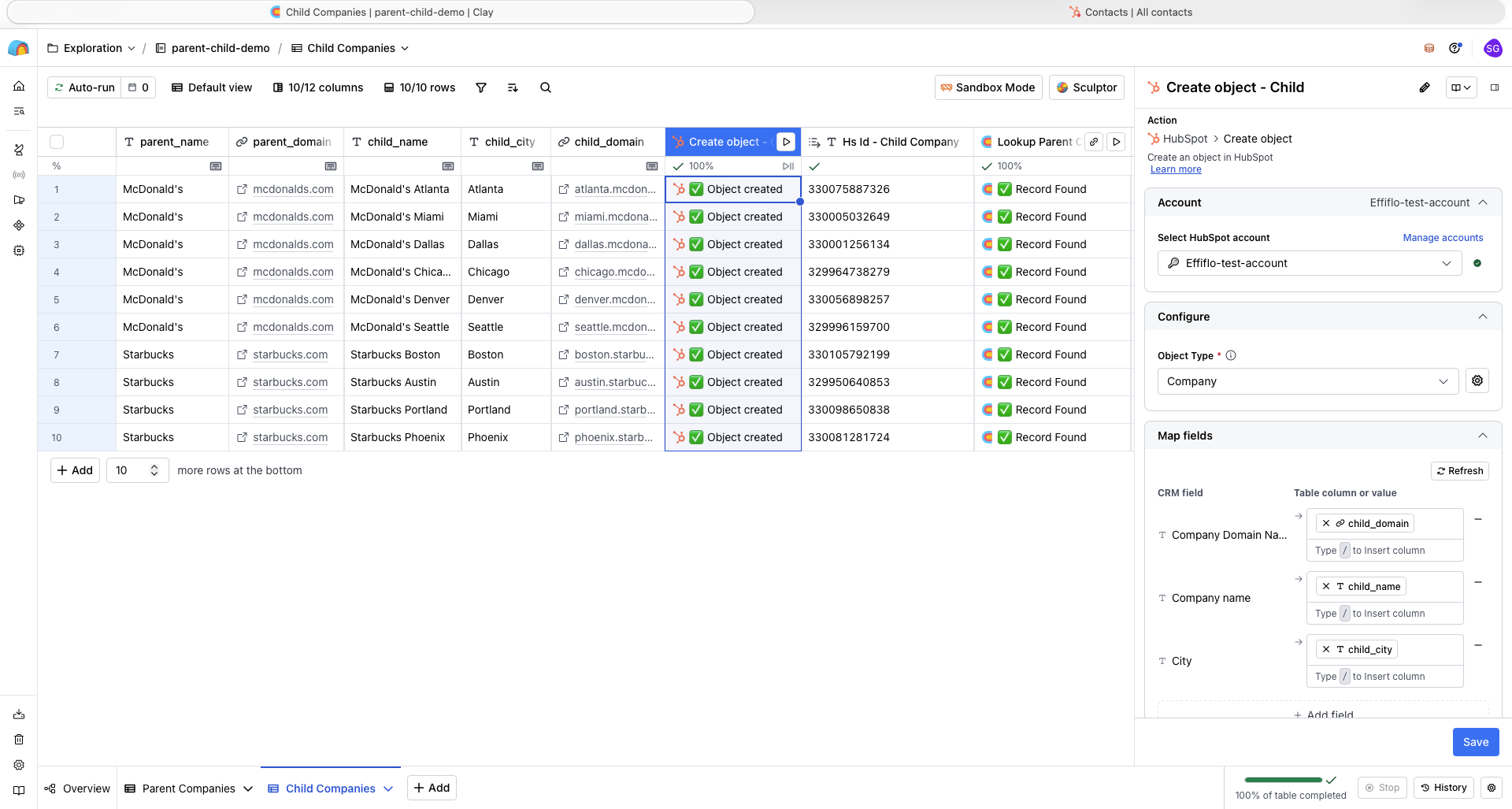 Clay Create object config for child companies
Step B — Look up the parent.
- Add column → HubSpot → Lookup object (Company), matching on
parent_domain(orparent_name). - Run → output = the Parent Company ID created in Table 1 (status: "Record Found").
Step C — Associate child → parent.
- Add column → HubSpot → Create association. Configure as below.
| Field | Value |
|---|---|
| From Object Type | Company |
| To Object Type | Company |
| Association Type | Parent Company |
| From Object ID | Hs Id – Child Company (Step A) |
| To Object ID | Hs Id – Parent Company (Step B lookup) |
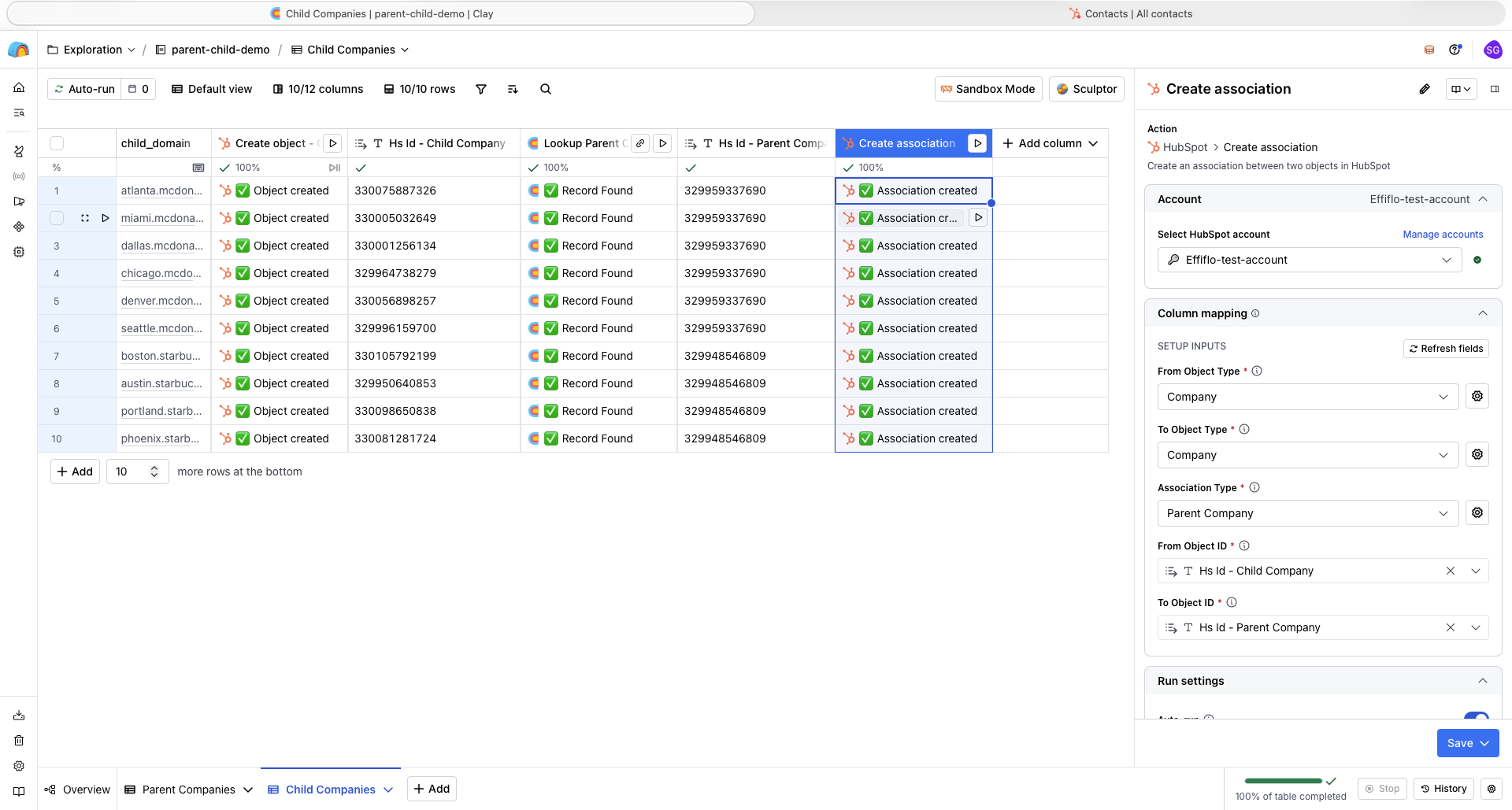 Clay Create association config panel
Result. Run the column and each child links to its parent in HubSpot — every row reads "Association created." One table run links an entire brand's locations.
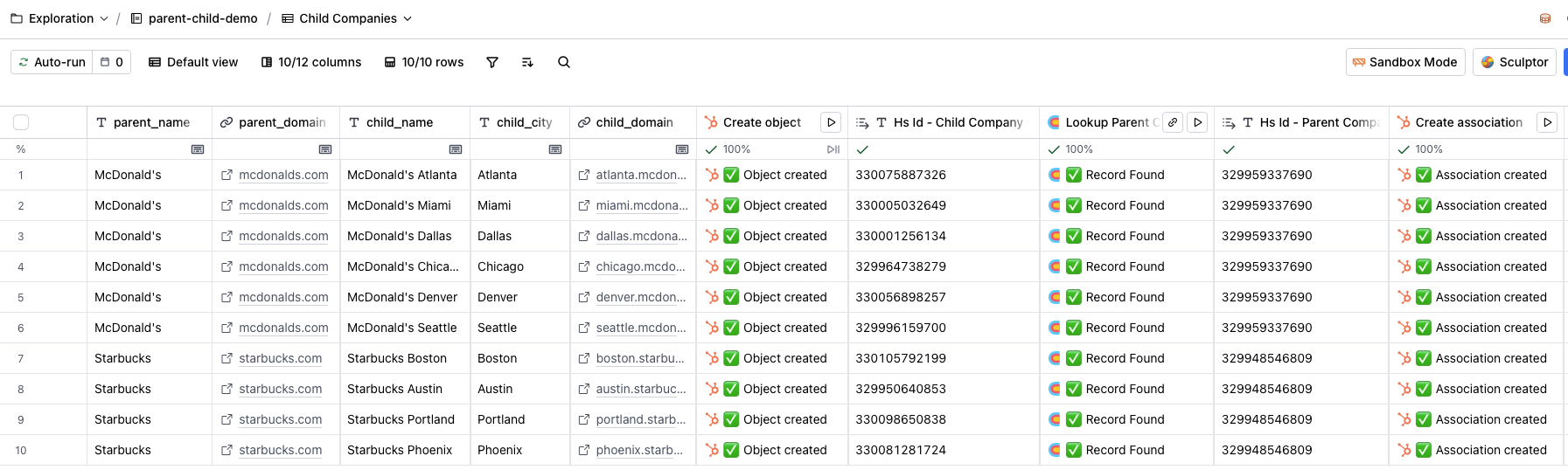 Clay Child Companies table showing the full flow
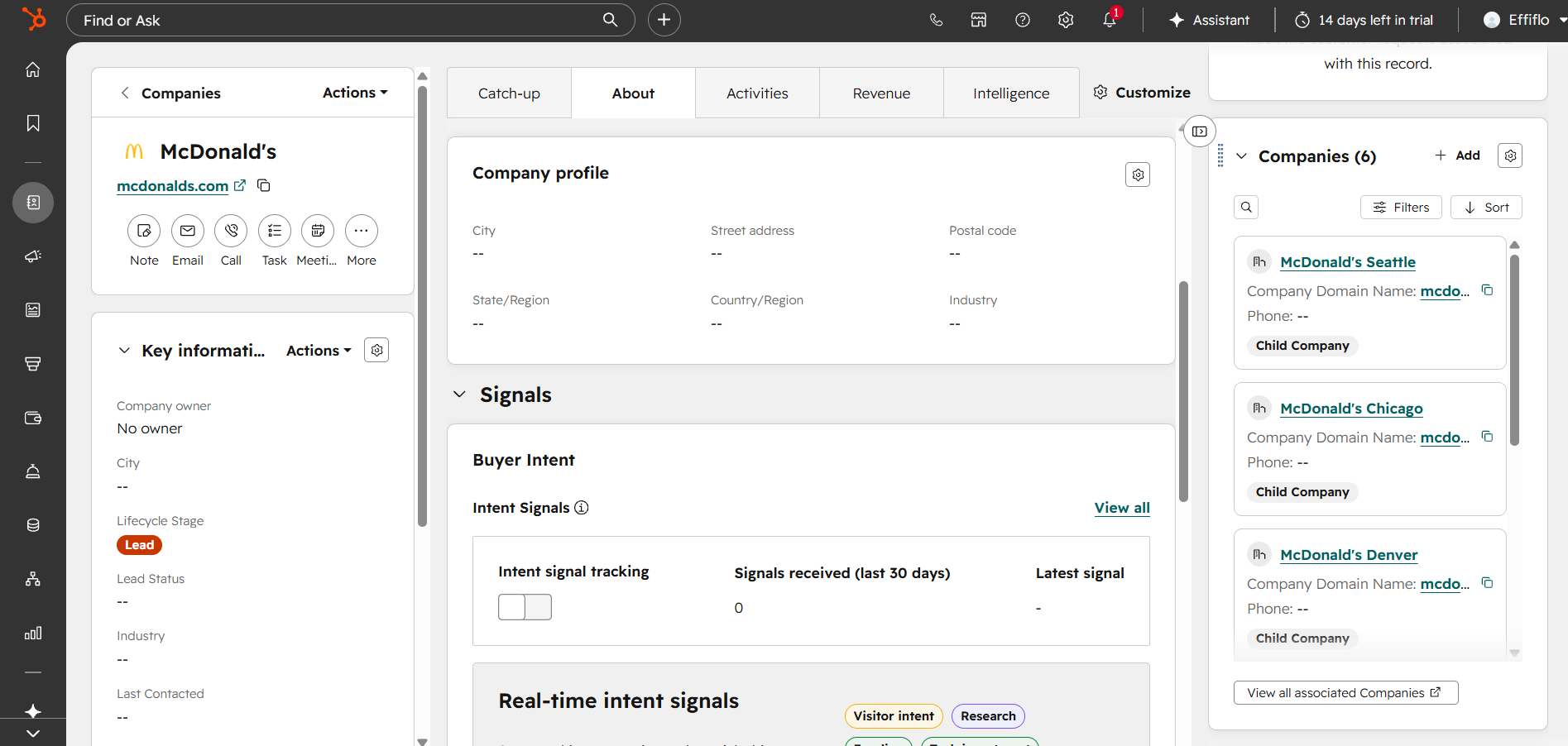 HubSpot: McDonald's parent showing all six child locations
What works, what to watch
| Capability | Status |
|---|---|
| Build a parent-child company structure in HubSpot, automated in Clay | Yes |
| Create parent, create child, and link in one table | No — duplicates parents |
| Avoid duplicate parents | Yes — unique-parents table + Lookup |
Create object finds-or-updates an existing record | No — it always creates |
| Reuse an existing parent's ID in the child table | Yes — Lookup object |
| Auto-attach corporate-email contacts to the right branch | No — turn auto-association off |
| Upgrade a standalone company to a parent/child later | Yes — no data loss |
The recommended workflow
- Table 1 — Parent Companies: one row per unique brand → Create object → Parent Company IDs.
- Table 2 — Child Companies: one row per location.
- Create object (child) → Child Company IDs.
- Lookup object (parent by domain) → reuse the Parent Company IDs.
- Create association → link child → parent (Association Type: Parent Company).
- Turn auto contact-company association off so employees stay on their branch.
- New location later? Add a row to Table 2. The lookup ties it to the existing parent automatically.
Rather not build it yourself? This is one workflow. If you'd like the whole Clay-to-HubSpot pipeline — enrichment, dedupe, sync, and reporting — built and maintained for you, talk to Effi Flo about your stack.
Build notes — what we changed and why
Our first version followed the tidy single-table design most guides teach. Building it live (real Clay workspace → real HubSpot) surfaced a few things reading about it couldn't. Here's each observation, the change we made, and why it's better.
| What we observed | Change implemented | Why it's better |
|---|---|---|
Duplicate parents. A single table with one "create parent" column fires on every child row, creating a separate parent record per child (6 "McDonald's", not 1) — because Clay's Create object always creates and never de-duplicates. | Split into two tables: a Parent Companies table (unique brands only) that creates each parent once, run before the child table. | Exactly one parent per brand, every time. The hierarchy stays clean no matter how many children you add, and re-runs don't pile up duplicates. |
| The child table still needs the parent's ID to link — but it must stop creating the parent. | Added a Lookup object step in the child table that finds the existing parent (by domain/name) and returns its Record ID. | The child reuses the real parent record instead of making a new one. New locations added later automatically tie to the existing parent — no rework. |
UI names didn't match the write-up. The original design called for "Create or Update Company" and "Association Category / Name"; the live Clay UI uses Create object, Create association, and an Association Type field. | Rewrote every step to the real UI labels, and set the association as From = Child ID, To = Parent ID, Association Type = Parent Company — the config that actually worked. | Readers click the exact buttons that exist in Clay today. No guessing, no mismatch between the guide and the product — which protects credibility (and AI-citation accuracy). |
The takeaway. This is what "build to understand" buys you: the published guide teaches the version that actually works, validated end-to-end in a live HubSpot build — not the idealized one that breaks on contact.
Ready to automate your recruiting?
Book a 30-minute strategy session with Deep Singh to see how Effi Flo can transform your pipeline.
Talk to Effi Flo about your stackFrequently Asked Questions
Last updated: July 24, 2026
Related Articles
Build Your Own Smart-Search MCP: The Full Playbook
The complete step-by-step guide to building the smart people and company search MCP we run in production on Parallel and Exa. Written for non-technical builders: seven phases, copy-paste prompts, and click-by-click platform setup.
Talent Engineer: The Role Recruiting Was Always Going to Need
The title is arriving now. The work started years ago. Here is how it happened, what the role actually involves, and why staffing and recruitment agencies will need it most.
Why Your ATS Is Lying to You: Stale Candidate Data, Fragmented Records, and the Hidden Problem Killing Agency Productivity
An ATS tracks applicants; it was never built to keep candidate data fresh or hold your relationships. Here's why that gap costs placements, and how modern teams fix it.